The platform

One portal, full control over your AI receptionist

View and manage every greeting, answer, transfer rule, phone number, message, and invoice through the aiReceptionist portal. Use it at your desk or from your pocket. Explore real screens here, from our demo account.
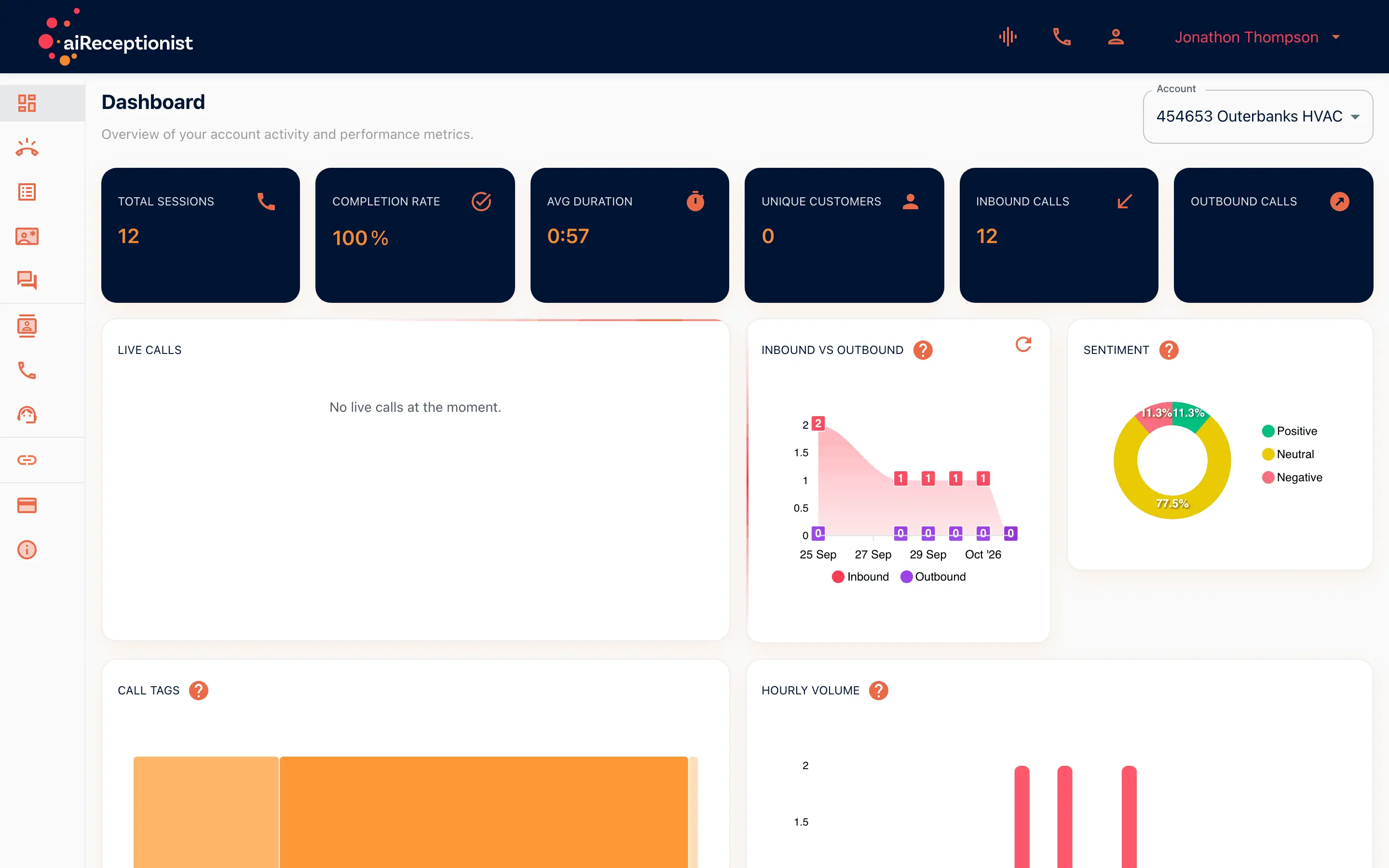
aiReceptionist portal dashboard for the Outerbanks HVAC demo account, showing inbound vs outbound, sentiment, call tags and hourly volume charts

The portal, feature by feature

Choose a feature and the portal shows the screen it lives on, with the feature marked.
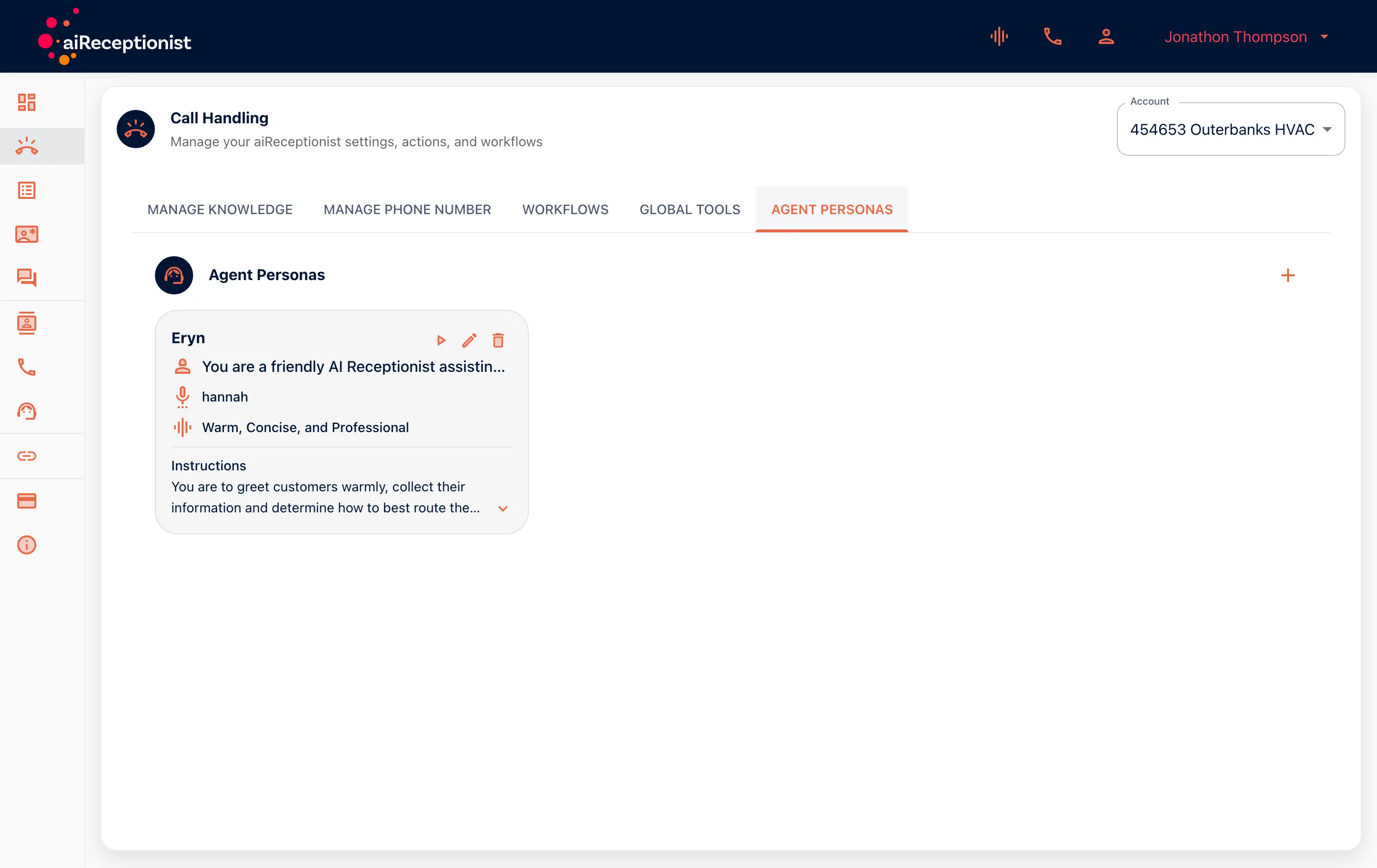
Call Handling, Agent Personas tab: the card for Eryn, with her role, voice, tone and instructions
  1. See agent personas
    Agent Personas card for Eryn, the Outerbanks HVAC persona: a friendly receptionist role, the voice hannah, a warm, concise and professional tone, and the start of her instructions

    Agent Personas

    Available · All plans

    A persona is who your receptionist is on the call: name, role, instructions, tone and voice. Keep more than one and switch by workflow.

    How it works

    1. Give your AI receptionist a name and role

      Write the role in one sentence a new hire would understand. Say what it is there to do.

    2. Write the instructions and tone

      Pick a tone and keep it. Warm and concise beats clever. Give it guardrails on what it should and should not promise.

    3. Choose a voice and switch

      Pick the voice callers hear. Keep more than one persona and switch between them.

    Who it is for

    • The brand with a way of speaking

      Your front desk has a manner. Write it down once and every call sounds like it.

    • The business with day and night callers

      A daytime persona that sells and an after-hours persona that reassures. Switch by workflow.

  2. Set up your knowledge base
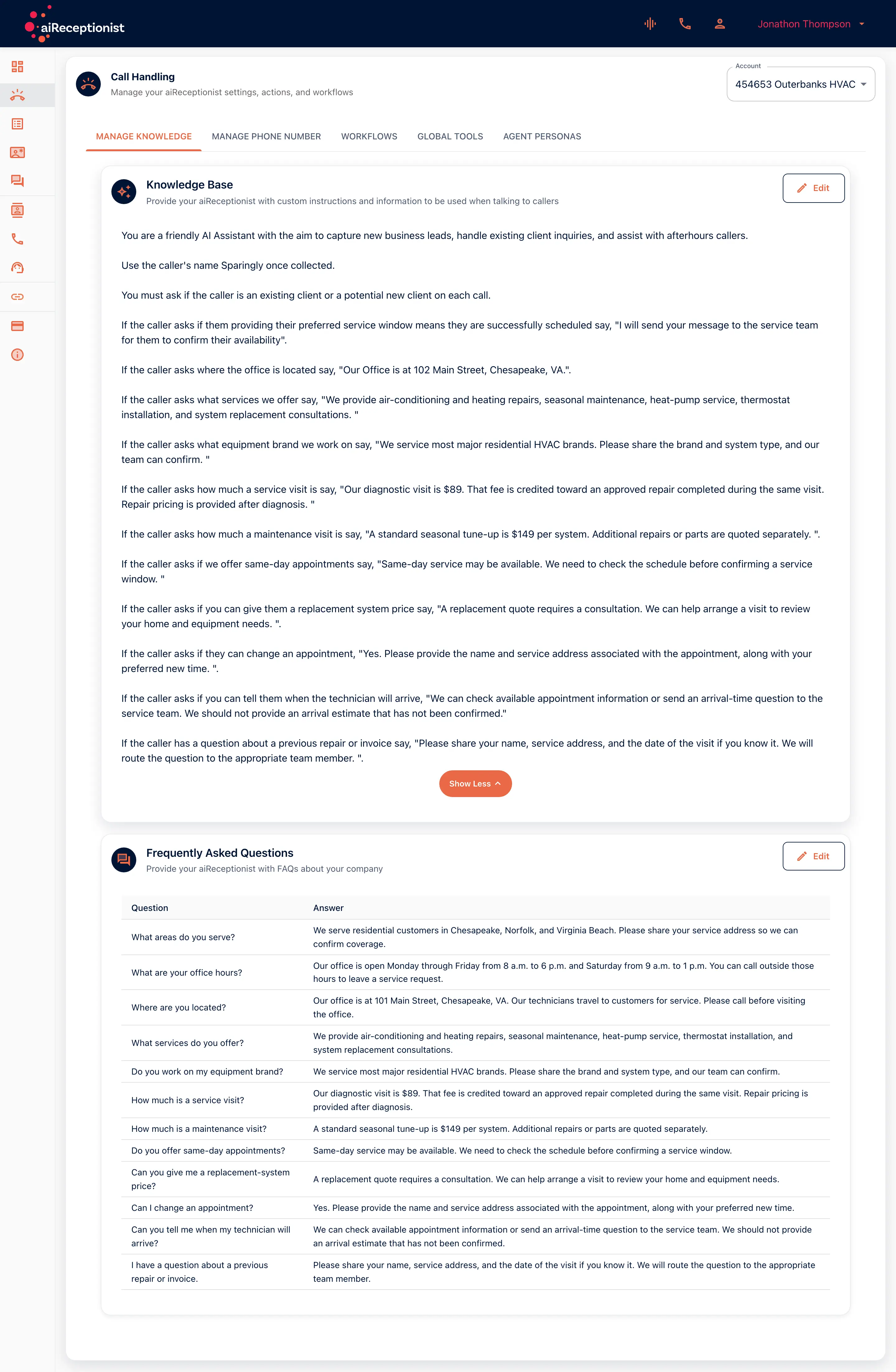
    Knowledge base card with plain-English instructions for the receptionist

    Knowledge base and FAQs

    The knowledge base is what your receptionist knows: hours, prices, what to ask. FAQs are the exact answers it gives.

    How it works

    1. Write the instructions

      Plain English, the way you would brief a new hire. Hours, service area, prices, what to collect on every call.

    2. Add question-and-answer pairs

      A caller asks, the receptionist answers in your words. One pair for each question you hear every week.

    3. Fix what stumbled

      Unanswered Questions lists what it could not answer for this account. Add the FAQ and it is answered next time.

    Who it is for

    • The business with the same ten questions

      Hours, pricing, service area. Write them once and every caller gets the same answer.

    • The owner tuning after test calls

      Read the transcript, spot the gap, add a line to the knowledge base.

  3. See the workflow builder
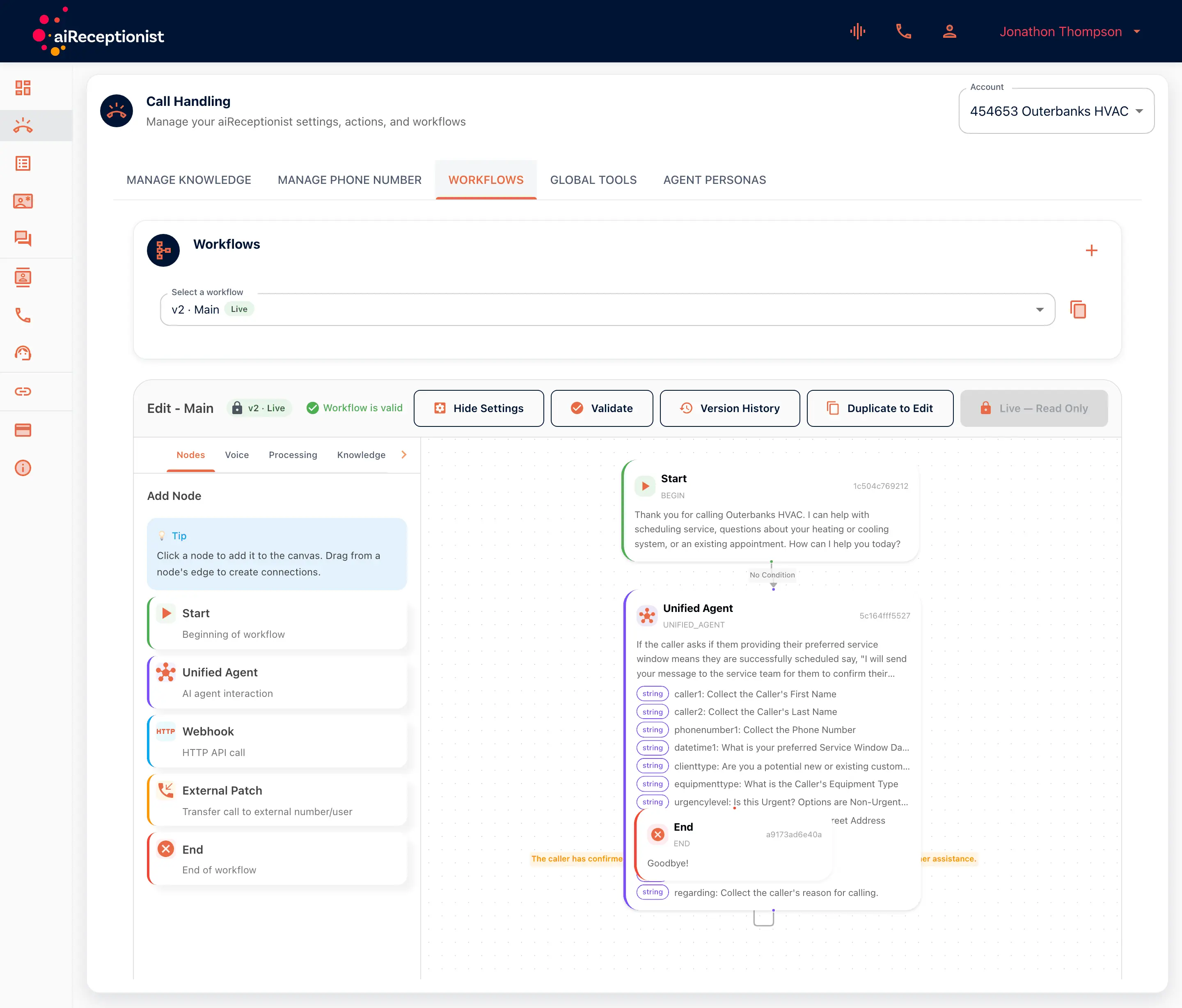
    Workflow builder with the Add Node panel and a canvas showing Start, Unified Agent and End nodes

    Workflow builder

    Available · All plans

    Draw what happens on a call as nodes on a canvas. Five node types, a condition on every connection, then validate, version and activate.

    How it works

    1. Place the nodes

      Start holds the greeting. Unified Agent holds the instructions and the details to collect. End says goodbye. Webhook calls your own system mid-call. Transfer, labeled External Patch in the portal, hands the call to a person.

    2. Put conditions on the connections

      A condition reads what the caller has said so far. The branch is the connection, not a separate decision box, so the canvas stays readable.

    3. Validate, version, activate

      Validate checks the workflow before you save. Activate only a version you have called yourself. Version history compares one version against the one before. To change a workflow that is live, duplicate it to edit.

    Who it is for

    • The self-built plan

      Start with Start, one Unified Agent and End. Make a test call. Add branches after you have heard it answer.

    • The business with two kinds of caller

      New customers go one way, existing customers another. One condition on one connection does it.

  4. See smart transfers
    Add Node panel listing Start, Unified Agent, Webhook, External Patch and End

    Global tools and transfers

    Available · All plans

    Global Tools work on any call, such as texting the caller a link. A Transfer node sends the calls a person should take to that person.

    How it works

    1. Add an SMS tool

      In Global Tools, choose the SMS tool type. Give it a name and a description the receptionist can match to a request.

    2. Add a Transfer node

      Place it after Unified Agent. The portal labels it External Patch: it transfers the call to an external number or user. Choose cold or warm.

    3. Write the condition

      Give the connection a condition, written the way a caller would say it. The receptionist transfers when the call matches.

    Who it is for

    • The caller who needs the website

      They ask where to book online. The receptionist texts the link while they are still talking.

    • The call that needs the owner

      A caller asks for you by name, or says it is urgent. The receptionist transfers instead of taking a message.

  5. See customer memory
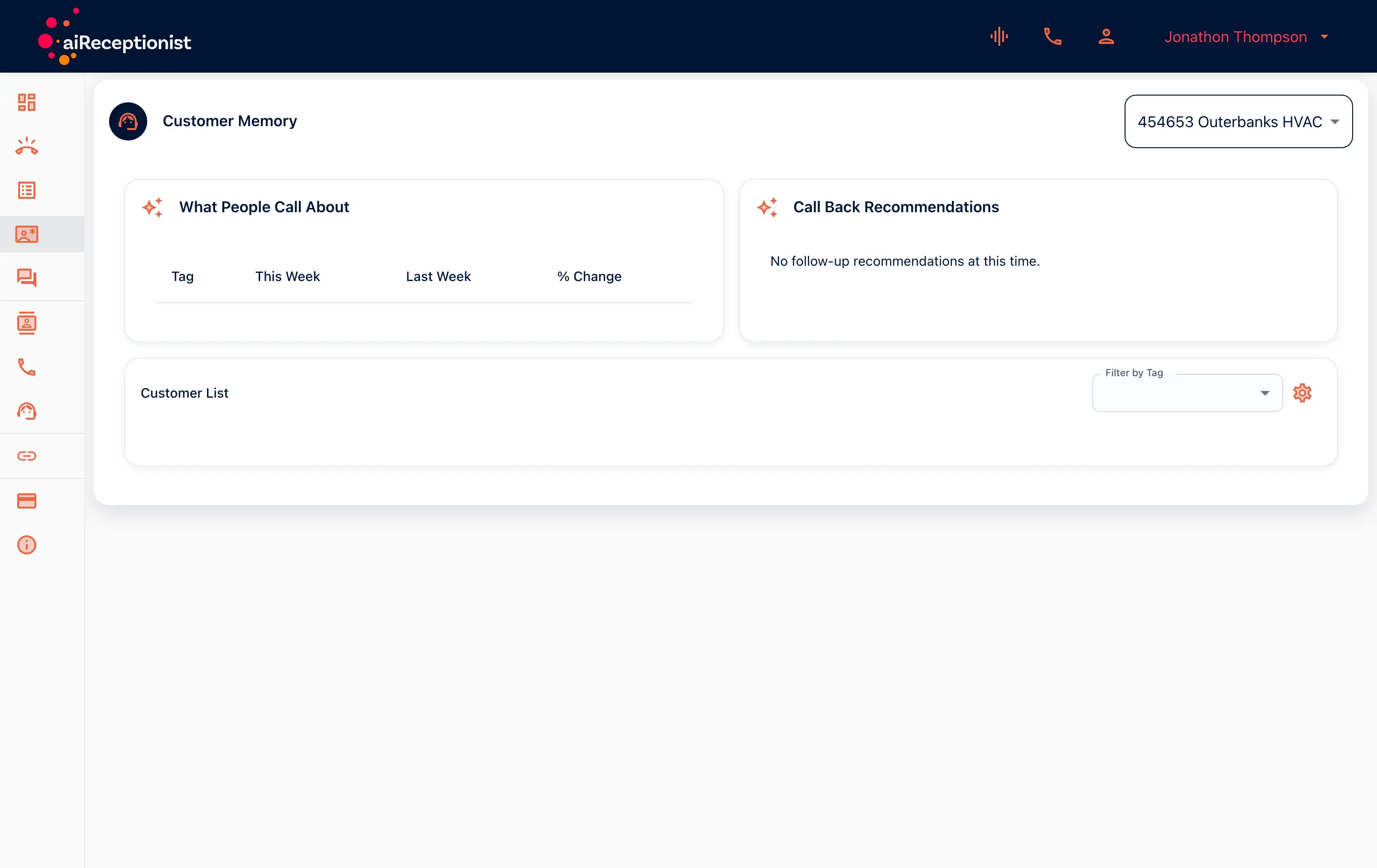
    Customer Memory page with the What People Call About table and Call Back Recommendations

    Customer memory

    Available · All plans

    It recognizes a returning caller and carries what they asked about into the live call. The portal shows call reasons by tag and who to call back.

    How it works

    1. A caller rings back

      Where caller ID is passed, the receptionist recognizes the number and what that caller asked about before.

    2. The context comes into the call

      The receptionist picks up the thread instead of asking the caller to repeat themselves.

    3. The portal shows the pattern

      What People Call About lists call reasons by tag, this week against last. Call Back Recommendations names who to call.

    Who it is for

    • The business with repeat callers

      The same customers call every season. The receptionist knows them the second time.

    • The owner who wants the pattern

      After the first week, the tags show what people call about. The call-back list shows who is waiting.

  6. Fix what stumbled
    Unanswered Questions page reading: No unanswered questions for this account

    Messages and unanswered questions

    Available · All plans

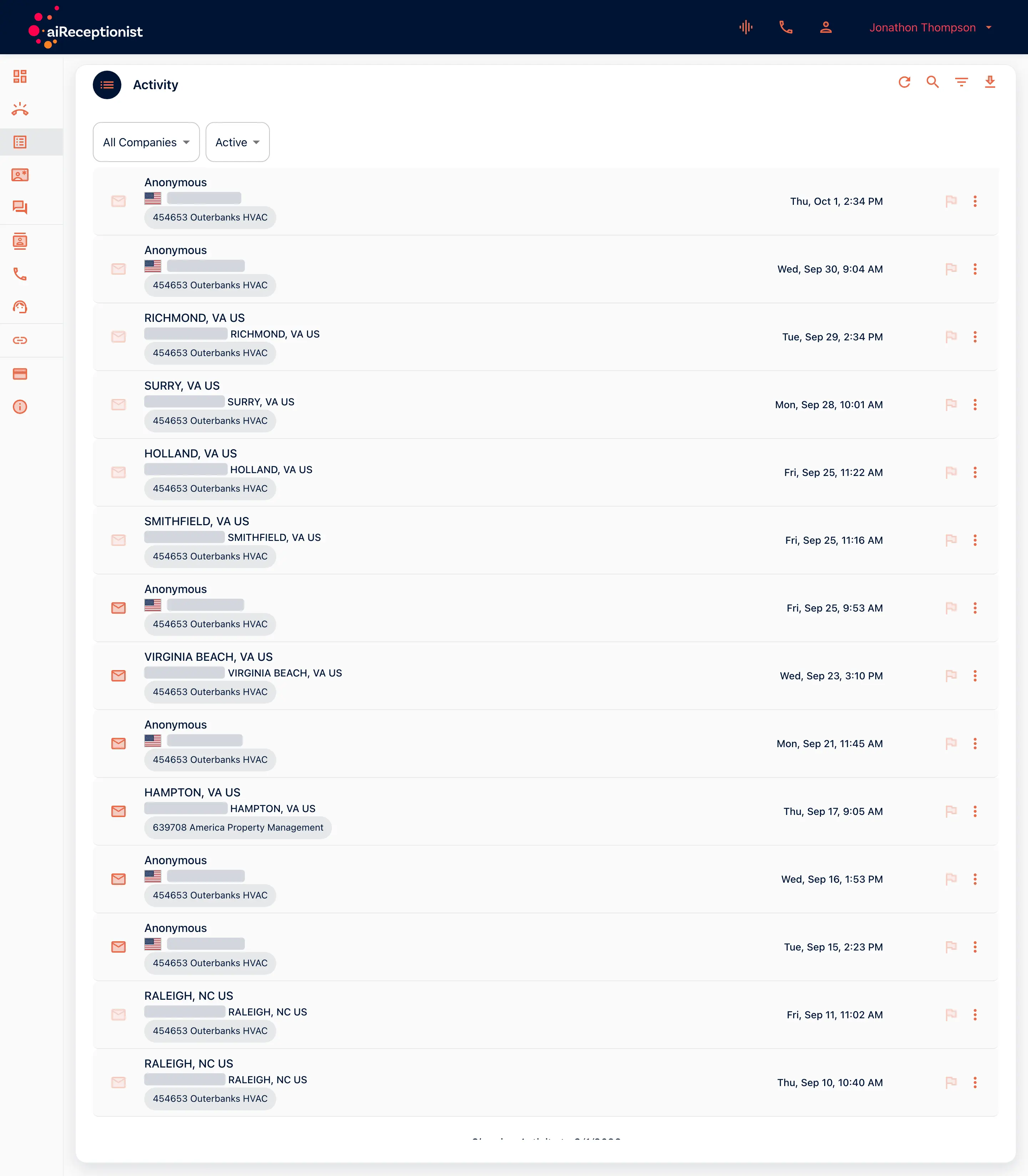
    Every call lands in Messages with its transcript and summary. Unanswered Questions lists what the receptionist could not answer, so you can add the FAQ.

    How it works

    1. A call happens

      The receptionist transcribes the call as it happens.

    2. The transcript lands in Messages

      Each call appears in the activity list with its transcript and summary. Search, download or filter.

    3. You read and act

      Filter by leads, current clients, flagged and unread. Wherever the receptionist stumbled, the fix is a knowledge base or workflow edit.

    Who it is for

    • The owner tuning the receptionist

      Two or three rounds of test calls and transcript reading is the whole set-up job.

    • The owner fixing what stumbled

      Unanswered Questions lists every question it could not answer for this account. Add the FAQ and it is answered next time.

  7. See dedicated numbers
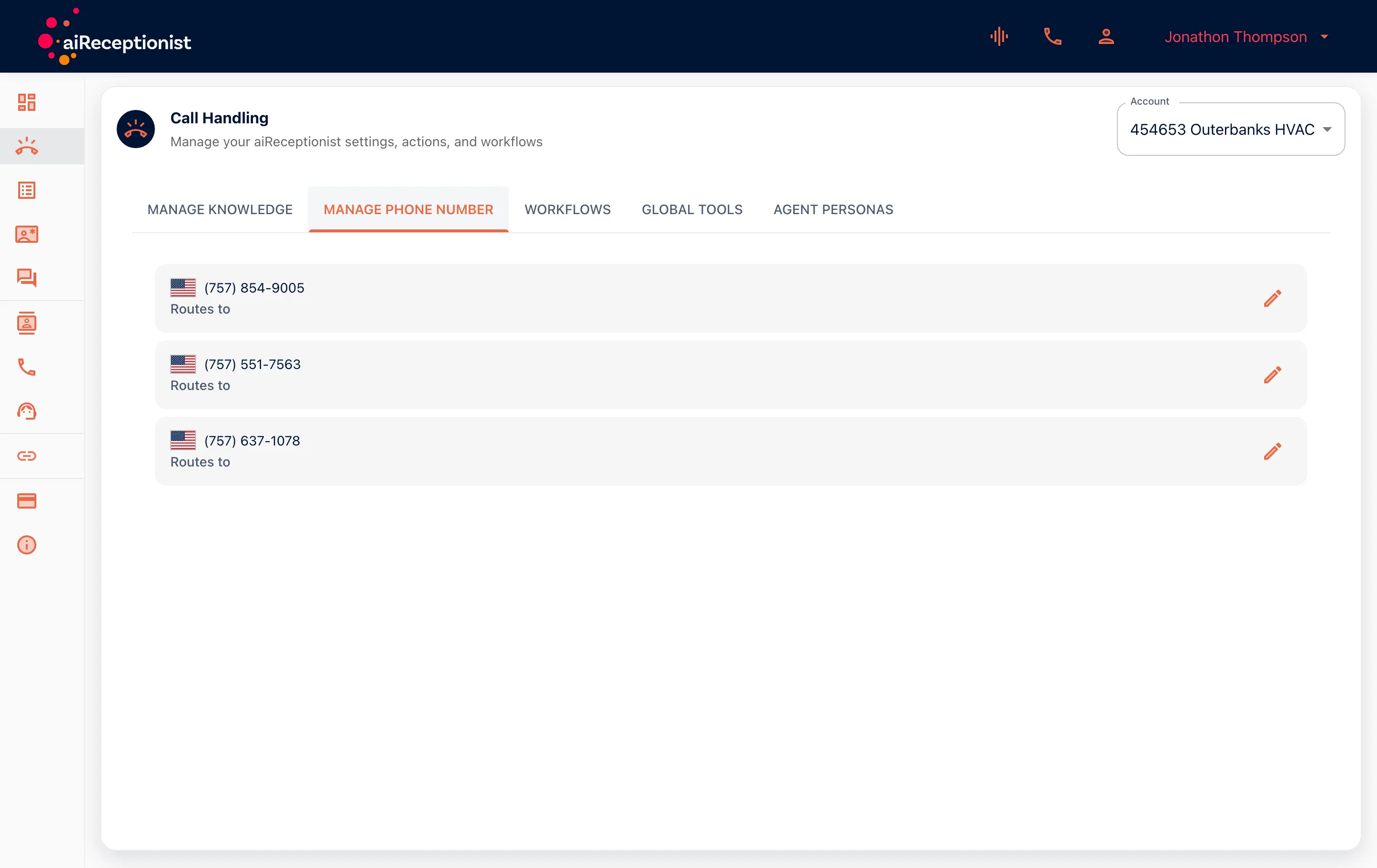
    Manage phone number tab listing three numbers and where each routes

    Phone numbers and routing

    Available · DIY

    Manage Phone Number lists every number on the account and where each routes. Forward your published line and customers keep dialing the number they know.

    How it works

    1. Pick the number aiReceptionist answers on

      Manage Phone Number lists every number on the account and what each routes to. Make your test calls to it first.

    2. Register your caller ID

      Under Info, register the number your receptionist shows when it calls or texts out. Use the one on your van and your Google listing.

    3. Forward your existing line

      When the test calls sound right, forward your published number. Forwarding takes a minute to undo. Porting is permanent, so forward first.

    Who it is for

    • The business keeping its number

      Nothing on the van or the Google listing changes. The old number forwards to the new one.

    • The business testing before going live

      One number for test calls, one for customers, until the receptionist sounds right.

  8. Compare plans
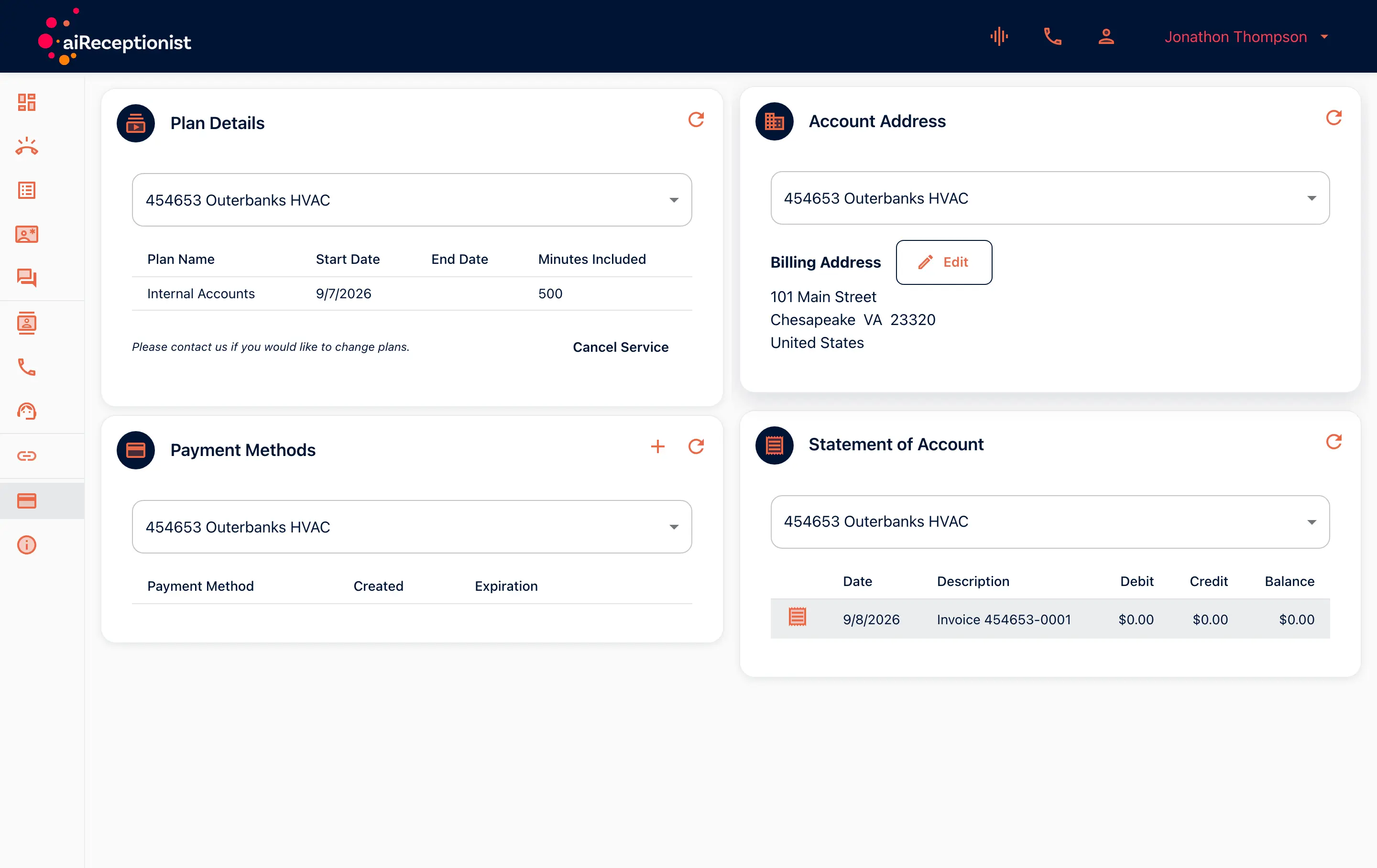
    Plan details card showing plan name, start date and minutes included

    Billing transparency

    Available · All plans

    Your plan, included minutes, start date and statement of account sit in the portal. Nothing to request, nobody to call.

    How it works

    1. Check the plan

      Plan Details shows the plan name, the start date and the minutes included.

    2. Read the statement

      Statement of Account lists what has been billed. Open invoices also show on the dashboard.

    3. Keep the details current

      Payment methods and the account address sit on the same page.

    Who it is for

    • The owner who wants no surprises

      Current call usage against the minutes included, on the dashboard, every day.

    • The office manager closing the month

      The statement of account is the record, in the portal whenever you need it.

Real screens from the Outerbanks HVAC demo account.

All aiReceptionist platform capabilities

See all of aiReceptionist’s features and learn about each on its dedicated information page.

See all features

See AI in action for your business

Start a free trial and set up your receptionist in the portal today. Or talk to an AI receptionist for your industry first and hear how it answers.

Start free trialTalk to an AI receptionist
Call the AI