Draft your service call workflow from a description
Describe your business and what callers need. Auto Generate drafts a workflow you can edit. Here is what to write so the draft is close.
November 10, 2026 · 2 min read · aiReceptionist editorial
A blank canvas is the hardest part of setup. Auto Generate writes a first draft from how you describe your business, and you edit from there.
Three callers: HVAC, handyman, and home services
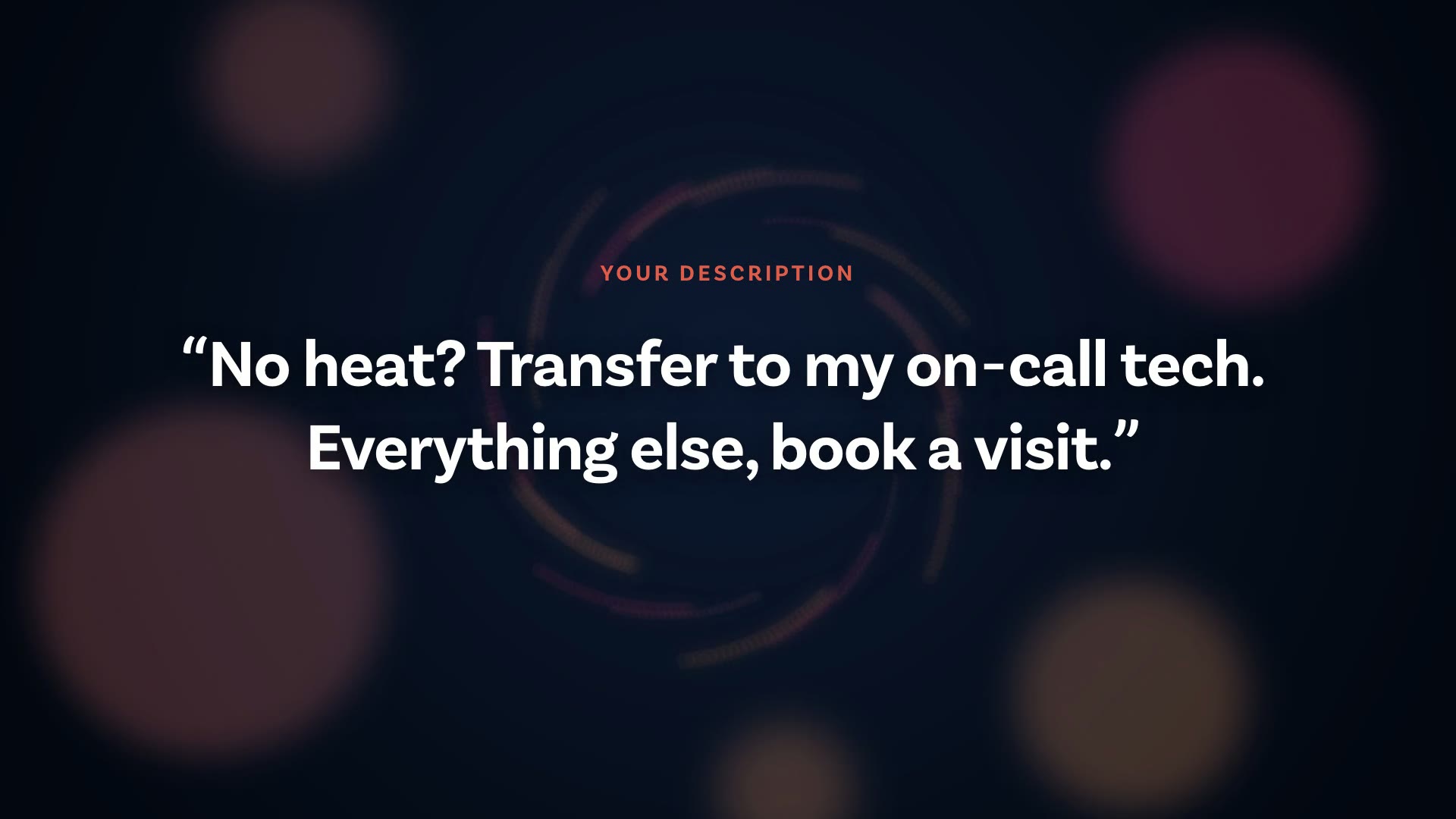
- HVAC: “Ask if it is an emergency, and if it is, call my cell.” Say it in the description, then check the draft has the question and the transfer.
- Handyman: “Ask what the job is and where, then book an estimate visit.” Name the jobs you take, so the draft asks about each one.
- Home services: “Send emergencies to the on-call plumber and everything else to the office.” Two paths. Name both so the draft has both.
The workflow builder decides what your receptionist asks and where calls go. Building one from nothing takes a while. Auto Generate gives you a draft to edit.
Where it is
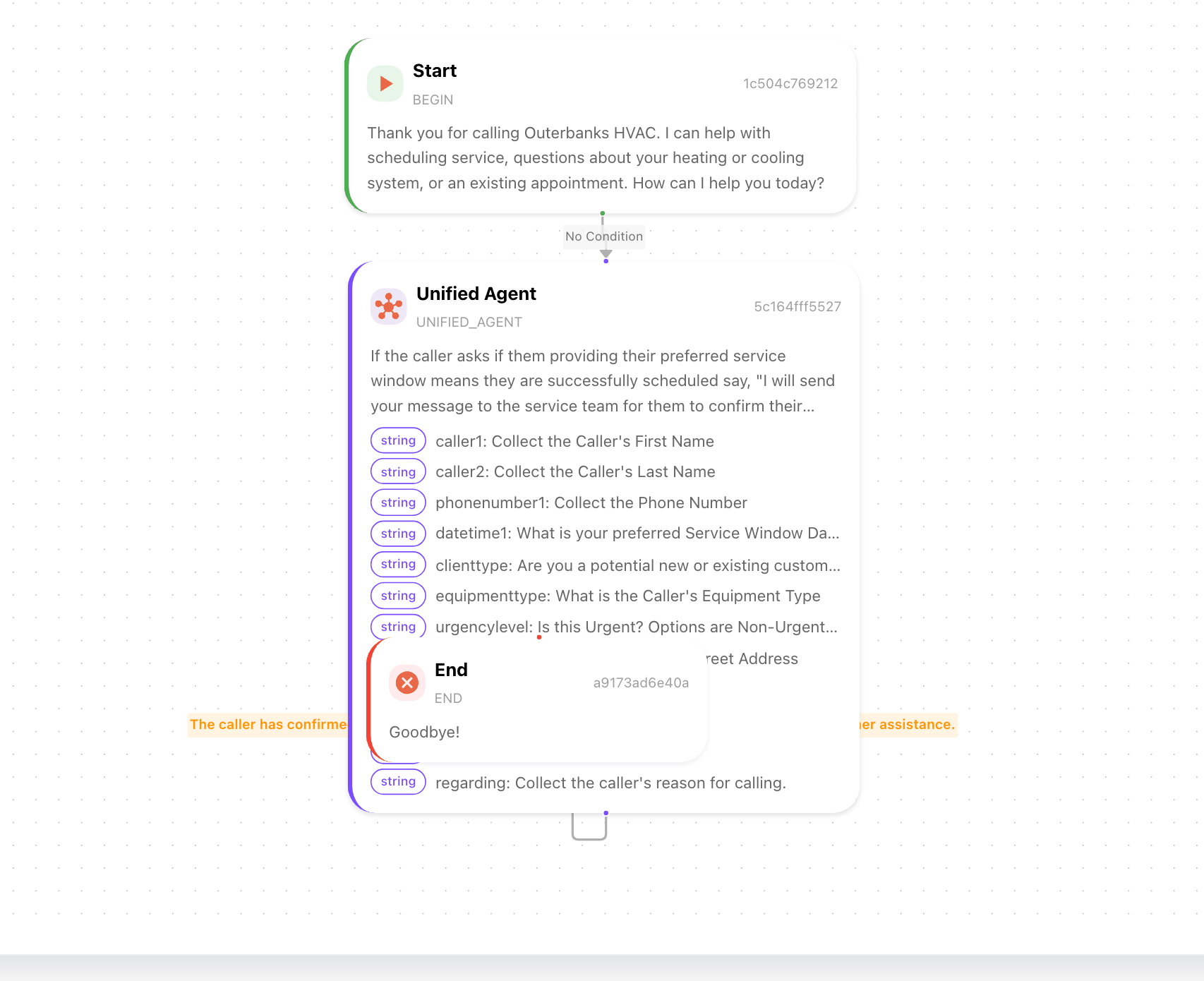
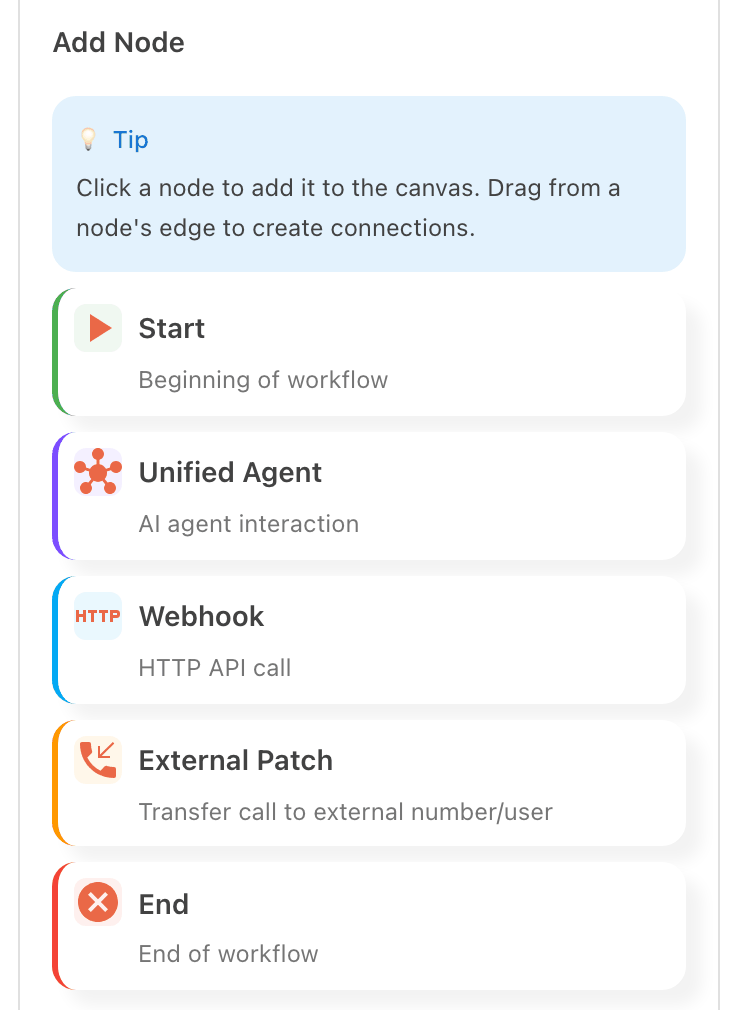
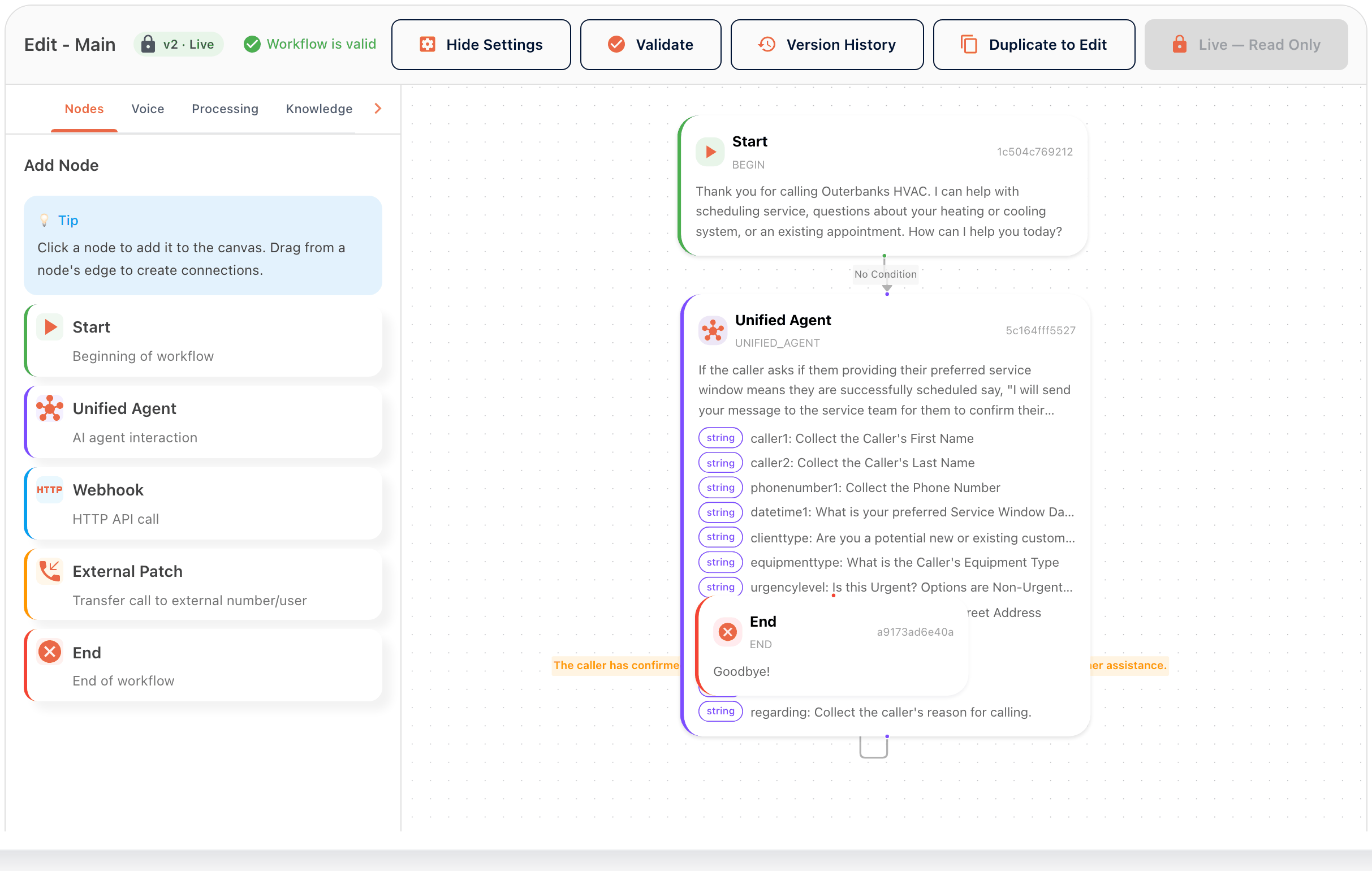
In Call Handling › Workflows, Create Workflow offers Auto Generate beside the blank canvas. It reads two things: the workflow description and your business context. Name it, and the draft lands in your Workflows list.
Write the description the way you would brief a new hire
Say what callers want, what to ask every time, which calls go to a person, and what never to promise. The more specific it is, the closer the draft.
Then read it like an editor
Open the draft on the canvas. Check every field you need is there: name, number, address, the reason for the call. Check the transfer conditions read the way callers talk. Validate it, then test it with a call.
Keep the live one live
Duplicate to Edit makes a copy, so you can change the draft while the current workflow keeps answering. Version History keeps what came before.
Talk to the HVAC receptionist to hear a finished workflow.
Ready to stop missing calls?
Try it free, or ask the team how it would work for your business.